Keeping an eye on who’s using your Wi-Fi helps you spot freeloaders, fix slow speeds, and keep your network secure. Check How Many Devices Are Connected to Your Wi-Fi Network Below is a clear, step-by-step guide that works for most home routers and mesh systems. Pick the path that matches your setup—web dashboard, mobile app, or a quick scan from your computer or phone.
Table of Contents
Method 1: Use your router’s web dashboard (works on almost all routers)
What you’ll need: Check How Many Devices Are Connected to Your Wi-Fi Network A device already connected to your Wi-Fi, the router’s admin address, and login credentials (printed on a label or in your ISP welcome email).
- Find your router’s address
- Common defaults: 192.168.1.1, 192.168.0.1, or 192.168.1.254.
- Windows: Press Win + R → type cmd → run ipconfig → note Default Gateway.
- macOS: System Settings → Wi-Fi → (i) next to your network → Router.
- Linux: Run ip route | grep default.
- Open the dashboard
Type the router address in your browser’s address bar and sign in. The default username/password (e.g., admin / admin or printed on the router) may still be active unless you changed it. - Locate the device list
This page is often labeled Connected Devices, Attached Devices, Client List, or LAN Status. You’ll see:- Device name (sometimes generic),
- IP address (e.g., 192.168.1.23),
- MAC address (unique hardware ID),
- Connection type (2.4 GHz, 5 GHz, Ethernet).
- Count and identify
Check How Many Devices Are Connected to Your Wi-Fi Network Match entries to your household gadgets (phones, laptops, smart TVs, speakers, cameras). Unknown names aren’t automatically suspicious—some devices use generic labels. Look at the manufacturer portion of the MAC (e.g., 44:65:0D might show as “Amazon Technologies”). - Optional: Rename devices
Many routers let you rename clients (e.g., “Riya’s iPhone”). This makes future checks painless.
Method 1: Use your router’s web dashboard (works on almost all)
What you’ll need: A device already connected to your Wi-Fi, the router’s admin address, and login credentials Check How Many Devices Are Connected to Your Wi-Fi Network (printed on a label or in your ISP welcome email).
- Find your router’s address
- Common defaults: 192.168.1.1, 192.168.0.1, or 192.168.1.254.
- Windows: Press Win + R → type cmd → run ipconfig → note Default Gateway.
- macOS: System Settings → Wi-Fi → (i) next to your network → Router.
- Linux: Run ip route | grep default.
- Open the dashboard
Type the router address in your browser’s address bar and sign in. The default username/password (e.g., admin / admin or printed on the router) may still be active unless you changed it. - Locate the device list
Check How Many Devices Are Connected to Your Wi-Fi Network This page is often labeled Connected Devices, Attached Devices, Client List, or LAN Status. You’ll see:- Device name (sometimes generic),
- IP address (e.g., 192.168.1.23),
- MAC address (unique hardware ID),
- Connection type (2.4 GHz, 5 GHz, Ethernet).
- Count and identify
Check How Many Devices Are Connected to Your Wi-Fi Network Match entries to your household gadgets (phones, laptops, smart TVs, speakers, cameras). Unknown names aren’t automatically suspicious—some devices use generic labels. Look at the manufacturer portion of the MAC (e.g., 44:65:0D might show as “Amazon Technologies”). - Optional: Rename devices
Check How Many Devices Are Connected to Your Wi-Fi Network Many routers let you rename clients (e.g., “Riya’s iPhone”). This makes future checks painless.
Method 2: Check via your router/ISP mobile app (fast and friendly)
If you use a mesh system or an ISP-provided router, there’s usually an official app: Check How Many Devices Are Connected to Your Wi-Fi Network

- TP-Link Tether, Netgear Nighthawk, ASUS Router, Linksys, D-Link Wi-Fi, Google Home (Nest Wi-Fi), eero, Tenda, JioFiber, Airtel Xstream, etc.
- Install the relevant app and sign in.
- Open your Network or Devices tab.
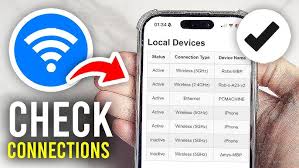
- You’ll see a real-time list of connected clients with pause/block options and signal strength.
- Count the devices and label unfamiliar ones for easy tracking.
Method 3: Quick scans from your computer (no special app required)
Windows
- Open Command Prompt and run:
arp -a
This shows IPs and MACs currently known to your PC. - For the router’s full list, the web dashboard (Method 1) is more complete, but arp -a is a handy cross-check.
macOS / Linux
- Open Terminal and run:
arp -a
or
ip neigh (Linux) - To sweep the network, advanced users can use:
nmap -sn 192.168.1.0/24
(Replace with your subnet.) Only scan your own network.
Method 4: Use a reputable phone scanner app
Check How Many Devices Are Connected to Your Wi-Fi Network Apps like Fing (Android/iOS) can scan your local network and list devices by name, brand, IP, and MAC. This is great for a quick headcount and spotting new connections. (You still control your network from the router dashboard or app.)
How to recognize “mystery” devices

- Check the MAC manufacturer: Many dashboards show the vendor (e.g., Apple, Samsung, Xiaomi, HP, Google).
- Power cycle a suspect gadget: Turn off your smart TV or console and see which entry disappears.
- Compare IPs: Devices on the same band often receive sequential IP addresses; patterns help you group them.
How to kick off unknown devices (and keep them out)
- Change your Wi-Fi password (most effective).
- Go to Wireless Settings in your router.
- Use WPA2-PSK or WPA3-Personal (avoid WEP/WPA).
- Set a strong, unique passphrase (12+ characters, mixed case, digits, symbols).
- Save and reconnect your trusted devices with the new password.
- Disable WPS.
WPS push-button or PIN methods can be abused. Turn it off in Advanced/WPS settings. - Remove/Block devices.
Many routers allow Block, Deny, or Pause for specific MAC addresses. Use this as a supplement; password changes are more decisive. - Create a Guest network.
Give visitors a separate SSID and password. Limit bandwidth and time, and keep your main network private. - Update router firmware.
In Administration/Advanced → Firmware, check for updates. Patches fix security holes and improve stability.
Performance tips while you’re there
- Band steering / separate SSIDs: If you split 2.4 GHz and 5 GHz, you can see where devices connect and reduce congestion.
- Channel selection: Auto usually works, but crowded apartments may benefit from manual channel selection (1/6/11 for 2.4 GHz).
- Rename SSID smartly: Use a unique name (not your address or full name).
Troubleshooting if the dashboard won’t open
- Ensure you’re connected to that Wi-Fi (not mobile data).
- Verify the router IP again (Method 1, Step 1).
- Try another browser or clear the cache.
- If you changed the admin password and forgot it, press and hold the router’s reset button (usually 10–15 seconds). You’ll need to reconfigure your Wi-Fi afterward.
- Check How Many Devices Are Connected to Your Wi-Fi Network
Quick recap

- The router dashboard or official app shows the most accurate, real-time list of connected devices.
- Cross-check with arp -a or a network scanner app for extra confidence.
- To remove unknown users, change the Wi-Fi password, disable WPS, update firmware, and use a guest network going forward.
- Check How Many Devices Are Connected to Your Wi-Fi Network
Follow these steps and you’ll always know exactly how many devices are on your Wi-Fi—plus you’ll keep your network tidy, fast, and secure.
Conclusion
Checking how many devices are connected to your Wi-Fi network is not only about curiosity—it’s a crucial step for security, speed, and control. By using your router’s web dashboard, mobile app, or simple scan tools, you can quickly spot all active devices and identify any unknown connections. If you notice unfamiliar devices, the safest action is to change your Wi-Fi password, update your router, and enable guest networks for visitors.
Regularly monitoring your Wi-Fi ensures that only trusted devices are connected, which helps maintain faster speeds, prevents unauthorized access, and keeps your personal data secure. With just a few minutes of routine checking, you can enjoy a smoother and safer internet experience at home. Would you like me to also give you a short SEO-friendly meta description (around 150–160 characters) for this blog so it ranks better on Google?